Hi all, I’m not getting any further on this, so I thought I would ask the community: some of my databases are getting quite large, which is an issue for the 256GB SSD in my MacBook…
What I am looking to do is to export everything before a certain date (creation- or modification date of the file, for example) into another database and then remove it from the “live” database.
I first tried using a Smart Group and while that does show me all applicable documents, it fails when I export “Files and Folders” from that group: it loses the folder structure - just throws everything into the directory I’m exporting to.
Does anyone have a script to do this? I tried having ChatGPT put together something for me, but its turning into gobbeldygook.
Thanks!
How many results is it finding?
166 items with creation date < Jan. 1, 2023.
Oddly, it does find a single group and actually makes this into a directory on export
Well, there is more than one way to denude a proverbial feline  but here is a simple and controlled option and a lesson in two of the new smart actions in DEVONthink 4…
-
Select a document in the search results.
-
Choose Tools > Batch Process > Batch Process or press Control-Command-B.
-
Press the plus (+) button to create a new configuration. Call it something reasonable, e.g., Move Files.
-
Set the first action to Set Script Input and click the ellipsis to open the placeholders menu. Choose Location.
-
Add another action, this time Script with Input/Output. Choose AppleScript, then click the Edit Script button.
-
Set the script to…
on scriptOutput(theRecord, theInput)
	tell application id "DNtp"
		set dbName to "HR Data" -- Change this to your destination database's name.
		if (get name of (database of theRecord) is not dbName) then
			set destLoc to create location theInput in (database dbName)
			move record theRecord to destLoc
		end if
	end tell
end scriptOutput
- Press Apply and check the destination database you specified in the script.
Note: This actually works on any selected item, not just something in search results.
Poor Kitty! 
Thank you. Unfortunately, I don’t have DEVONthink 4 (yet).
But the script should also work for version 3, right?
Thank you. Unfortunately, I don’t have DEVONthink 4 (yet).


But the script should also work for version 3, right?
Not in that state since those two smart actions don’t exist in version 3. However, I had this written as well, with an option to choose an open database when it runs…
tell application id "DNtp"
	if (selected records) is {} then return
	set databaseNames to (name of databases)
	set dbName to choose from list databaseNames with title "Move records…" with prompt "Choose the database to move to:" without empty selection allowed and multiple selections allowed
	set destDB to (database dbName)
	repeat with theRecord in (selected records)
		if ((name of database of theRecord) is not destDB) then
			set recLoc to (location of theRecord)
			set destLocation to (create location recLoc in destDB)
			move record theRecord to destLocation
		end if
	end repeat
end tell
1 Like
Hi Jim, sorry, I wasn’t able to test the script until today.
When I select all items that the smart rule lists out and run the script, I can select the database just fine but then it throws an error:
(database dbName) is highlighted.
While I used to be a programmer, I don’t know Apple Script, but it seems that there is a casting error?
Thanks!
BR Nick
It’s often easier to figure out what’s going on if you look in the log (View > Show Log, CMD-3).
I was a bit puzzled that the script expected an integer. set db to database "Name" works fine, for example. If database is not followed by a string, I guess an id is expected – and that is an integer.
choose from list always returns a list, even if you only select a single item. (In AppleScript, a list is marked with braces, i.e. {item 1, item 2}). So you have to get the output of that command as a string.
You could either add another variable – one for the dialog, one for the result:
set dbList to choose from list databaseNames ...

set dbName to item 1 of dbList
-- Or
set dbName to dbList as string
-- (In this case, the results are identical)
Or, without adding an extra variable…
-- Coercing the list to a string
set dbName to ¬
	(choose from list databaseNames ...) ¬
		as string

-- Specifying the first list item
set dbName to item 1 of ¬
	(choose from list databaseNames ...)
You could even go for something like this to drop the databaseNames variable. But that might be stretching readability too far.
set dbName to (choose from list ¬
	(get name of databases) ¬
		with title "Move records…" with prompt "Choose the database to move to:" without empty selection allowed and multiple selections allowed) ¬
	as string
The line should be…
set dbName to item 1 of (choose from list databaseNames with title "Move records…" with prompt "Choose the database to move to:" without empty selection allowed and multiple selections allowed)
Bad form on my part though oddly I don’t recall it failing here.
Hi troejgaard, thanks much for looking into it. Jim figured out what was wrong (see post below). I believe you may already be on v4, as my log is called via the Window menu.
Hi Jim, thank you very much, that fixed it!
I do get an error when running it.
My smart group looks like this:
That selects a little over 3.000 items. So far so good.
When I run the script, it iterates for a while and then comes up with this error:
That leaves just over 1100 items.
I run it again and it stops with this (leaving 394 items):
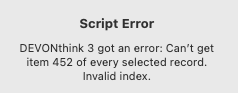
It seems that possibly individual items are triggering this. There is nothing in the log, oddly enough.
Any ideas?
Thank you!
I was referring to the log in Script Editor, which my screenshot was meant to demonstrate. It also clearly shows I’m still running DT3 
(I did expect to have upgraded by now… I’ll hopefully get around to it soon.)
Jim basically confirmed what I was saying. Perhaps I was being to verbose.
Like I was saying, you want to look in Script Editor’s log to debug this. Go to Settings > History and make sure “Log History” is enabled.


