Is there any way, when going through a PDF in DEVONthink, to select some text, highlight it with some colour and add a personal note about that highlighted text? So that, when I come back to the document, I can see the highlight, click it, and get taken to my note?
Yes to highlighting text and Yes to adding a note
These are annotations, and appear in the Annotation Inspector panel
I rather meant, doing those two things together, so that a highlight or similar is a visual flag of a note that I made to that specific text (and which I can click to go to that note).
Please have a look at the documentation under “Documents - PDF” and you will find what you are looking for and much more.
Or search the forum there are plenty of posts about this topic.
2 Likes
OK well I’ve read it, and searched, and it seems there is no way of doing what I want to do. Opening each PDF in Adobe Acrobat seems the best option.
It seems so simple to me. Select a piece of text in the PDF, highlight it with a color using the toolbar and then right click on the highlighted area and select add note
2 Likes
Can you give details on your workflow, and where it’s failing
Perhaps a sample .pdf
I have no issues with - “select some text, highlight it with some colour and add a personal note”
1 Like
What @fredap said. I do it all the time.
1 Like
When I do that, it leaves “post-it” type icons with the note inside, but they actually obscure parts of the text that I’m reading.
1 Like
Unfortunatly I am not aware of a way to suppress this. Perhaps you should request such a feature.
The note can also be found in the inspector so making it optional should not present a problem.
Doesn’t Adobe do that too? The comment/post-it function for standardised PDF annotation (which Adobe and DT both follow) is for the post-it icon in the PDF which the user then clicks to open. You should be able to move the icon on the PDF though.
As @DTLow said, please can you explain your workflow and what it is that you are trying to do? Many of us in the forum are reading and processing PDFs regularly, so we’ll be able to give you tips once we know how you’d like to work.
For what it’s worth though, I personally don’t like the post-it function of standard annotations because I like all comments to be visible at all times, so I’m a “text box” or Apple Pencil annotator myself.
1 Like
Unfortunately, I was not able to move the icon. If there is a trick I would like to know.
When the “Note” icon is active you can move the icon in the PDF
I just tried, but when I try to select an existing icon, it actually just adds an icon for a new note. Is there more needed than just selecting the note icon?
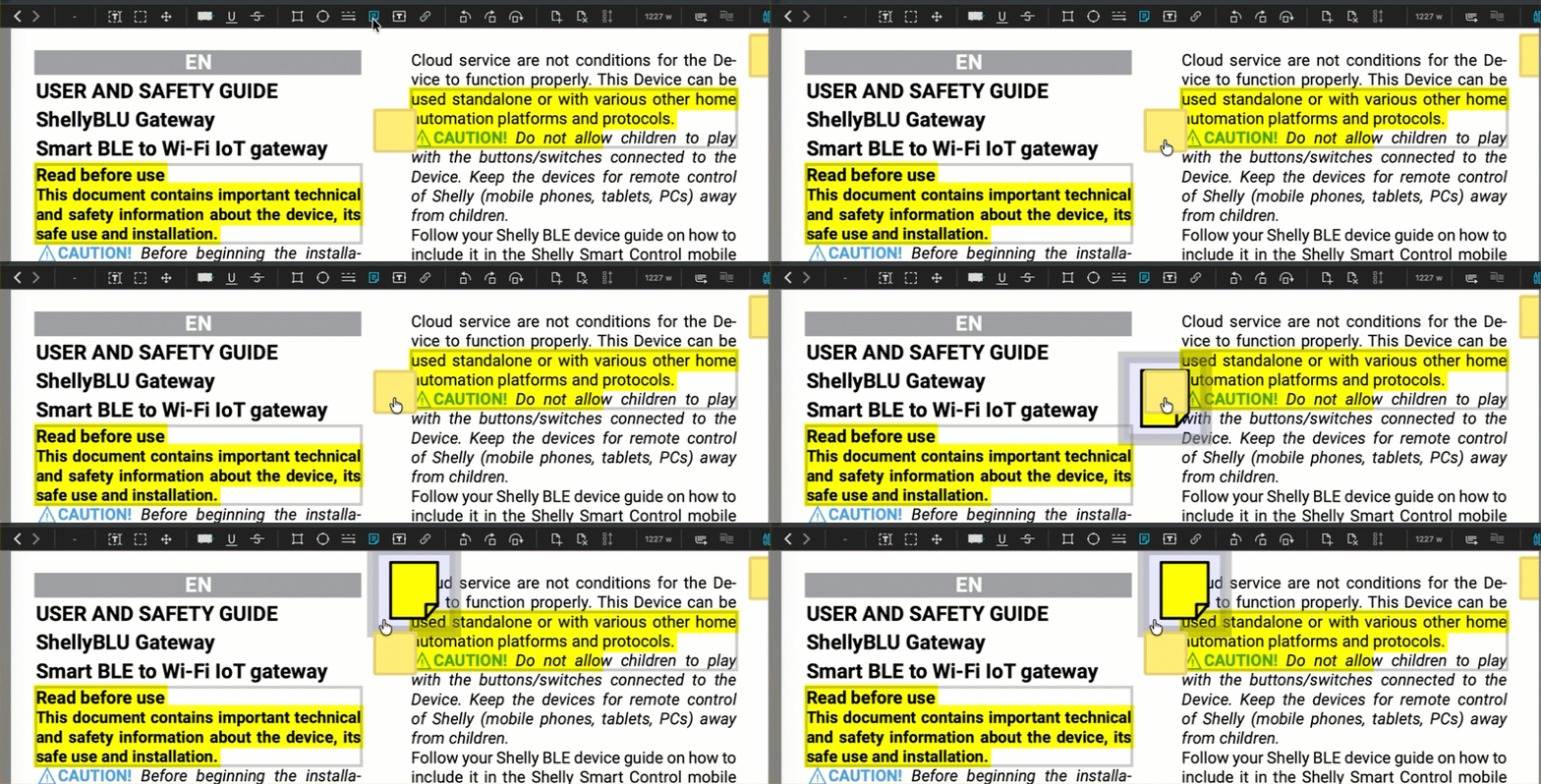
When you have selected the “note” icon in the menu bar and hover the mouse over the icon in the PDF the cursor changes into a hand symbol and the text of the note is shown, and you can move the icon.
When I do this, I do get the hand cursor but when I click it will create a new note and I can position that new note but the original stays put. Weird.
1 Like
When I first saw your question, I was like, “Duh.” But then I saw the problem.
Highlights.app does what you want. You click the highlighting in the PDF and your notes are attached to that very highlighting, without the extra rectangle needing to be added. In fact, I opened a PDF in DT and clicked on an annotated highlights—and just adding a single character invoked the damned rectangle.
To solve the very problem you created this thread about, I open my intra-DT PDFs with Highlights by using CMD-O.
The bad news is Highlights.app isn’t worth buying (much less subscribing to, which is their model) because it can’t handle Mac-local URLs with parentheses or brackets or other non-weird characters in their names. The developer has not updated it in over a year and has been MIA since that time.
One of the best uses of notes embedded in highlighting is linking highlights to each other, using Mac-local URL syntax in markdown. That feature is now also broken in Highlights.app.
Ironically, the intra-linking power is stronger in DT. Not only does this magical feature work, the DT version lets you link to individual highlights. Highlights.app only lets you link to whole pages.
I share your pain!
2 Likes