I have been using DEVONthink Pro (and predecessor versions) for around 20 years, but I still cannot successfully repeatedly paste in a deep link to a page in another app in a document in DT, and click the link so as to go to that page. (When I have done so in the past, it has involved (each time) around 20 minutes of research to determine how to add a link to a document and on several occasions over the years I have been successful but I think the process may have changed again with v4).
In other apps I can paste a URL into the app, a line automatically appears underneath it to show it is a link and when I click it, the URL opens. I gather this is not how it works in DT.
I have reviewed the manual and done AI searches on the process and this is what I have tried:
- gone to Settings | Editing | General | Substitutions and checked Smart Links, as I understand that for DT to recognise automatically something that has the characteristics of a link this is necessary;
- pasted a URL into a formatted note in DT, and then pressed the space bar - nothing happens to the ‘link’; it still looks like text and cannot be clicked;
- I then right clicked on the link and selected Substitutions | Smart Link - and nothing changed;
- I then right clicked on the link and selected Services to see if the option to link was there - it wasn’t;
- the contextual menu items that include the word ‘link’ confuse me and I cannot use them to achieve my objective.
Is there anything else I should be doing?
- a deep link to a page in another app
- In other apps
Please be more specific about things. There is no universal linking so be clear about what you’re copying, from where.
A deep link to a page (node in their terminology) in Tana (an app) is shown in the next post via a screenshot. That is what I am copying. It is from the Tana app using its equivalent of the Copy Item Link menu item in DT.
I have since discovered that if I manually highlight the full text (the item link copied into my formatted note in DT from Tana) by selecting the beginning of the text and mousing across all the text so it is fully selected (double clicking does not work as it selects part of the URL only) and right click there is a menu item Open Link in Safari which opens a Tana page in Safari which allows me to either load the page in Safari or open it in the Tana app.
Can the process of selecting the URL in DT be simpler than this (ie. carefully selecting all the text then selecting a menu item)?
Out of interest, when I copy an item link in DT and paste it in Tana, this is what appears:

and it can simply be clicked to open the item/group in DT. Is this (simple process) not possible in reverse in DT?
Thank you
Here is a screenshot of the first part of the link copied from the Tana app:

1 Like
I am seeing no issue with smart links detected in a formatted note in DEVONthink 4.2.1.
The link is on the clipboard:
And here’s the behavior:
Thank you Jim, that is interesting, and the behaviour you demonstrate is exactly what I am after!
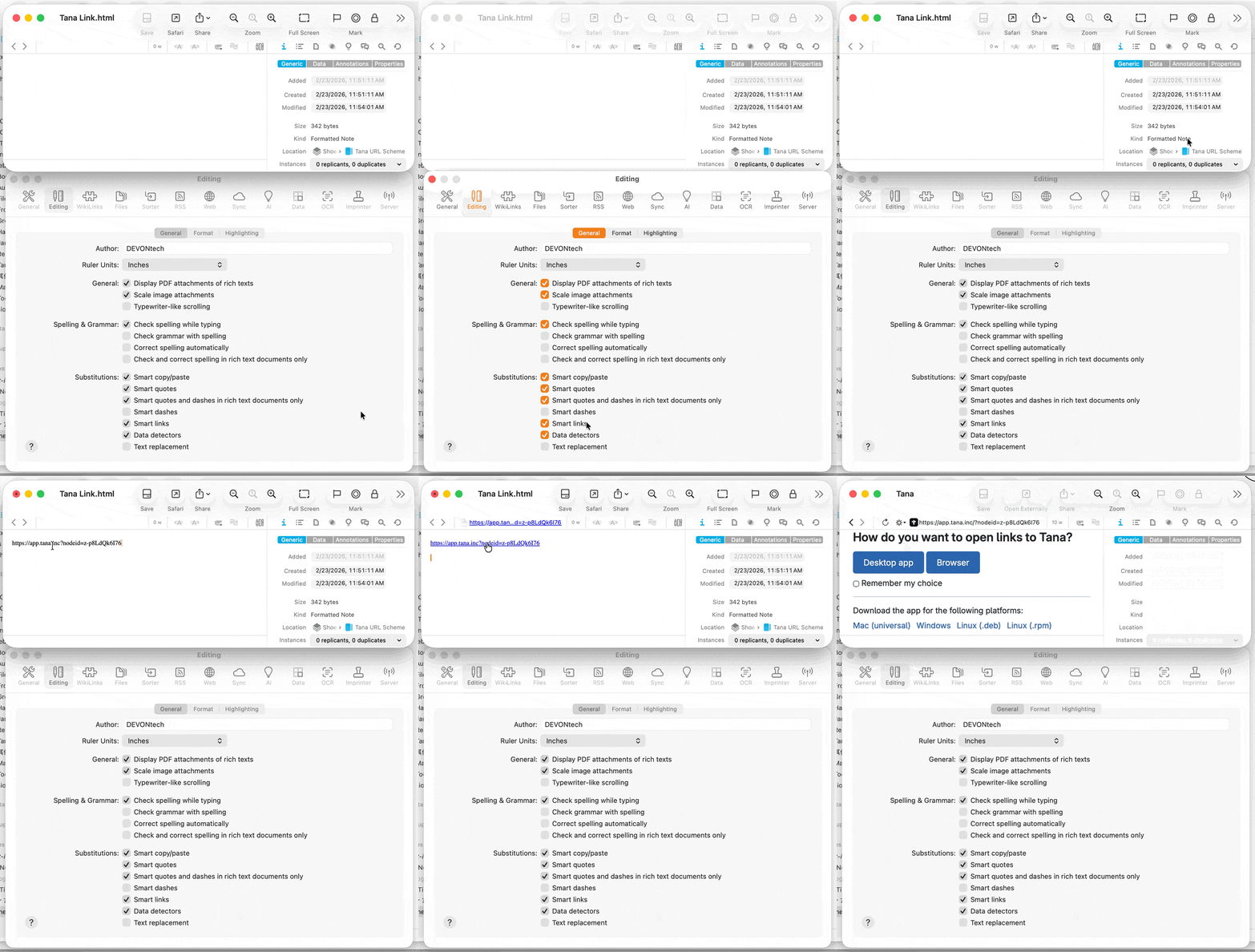
I am doing the exact same thing, except wanted clarification on your pasting into the formatted note. I have tried pasting: Cmd-V and typing a space immediately after and Cmd-V and typing return immediately after but neither creates a link like you can.
As per screenshots:
- 4.2.1
- formatted note
- settings with smart links on
I have also restarted DT after turning on smart links in settings to no avail.
I also tried another app, Airtable, and pasted a URL link to a record in that app to the same formatted note, with same result.
I also turned off Smart Links in Settings then turned it on again and tried again, with same result.
I also created a new formatted note, re-pasted with same result.
I tried using:
- rich text document
- markdown note
and these both worked as expected. Perhaps I should start using rich text document instead of formatted note (I am not aware of any downsides)?
With your formatted note selected, what is shown in the Edit > Substitutions submenu?
Also I amended my previous post to note that rich text document and markdown note work as expected.
Glad to hear it (and I had already confirmed no problem with those formats here).
While it’s a valid choice, I will ask why you’ve settled on using formatted notes. And I still hope to determine what your issue is.
1 Like
I used Formatted Note because it seemed to have characteristics I am after - font choice, and formatting of text (superior to markdown).
The only reason I preferred Formatted over RTD was that RTD has a top margin that takes all of the top half of the screen (see screenshot); the same applies to Markdown. It seems strange that there is such a large amount of unusable blank space at the top of the note.
I have a Style Sheet for Markdown. I am a novice with such documents but cannot see where it is specifying a top margin. And in any case, if an errant line on the Style Sheet was causing the half page top margin in a Markdown document, would that produce the same result in a RTD?
I am delighted that I can easily link to other app documents using the RTD format. Thank you for steering me to that. And, yes, it would be good to know why my software is behaving differently for formatted notes.
Actually, you almost certainly have enabled Typewriter-like Scrolling in the Format menu or the Editing > Format settings.
I most certainly had - probably on a tour of the delights of the new v4!
Typewriter mode now off and looks good.
Many thanks
1 Like


